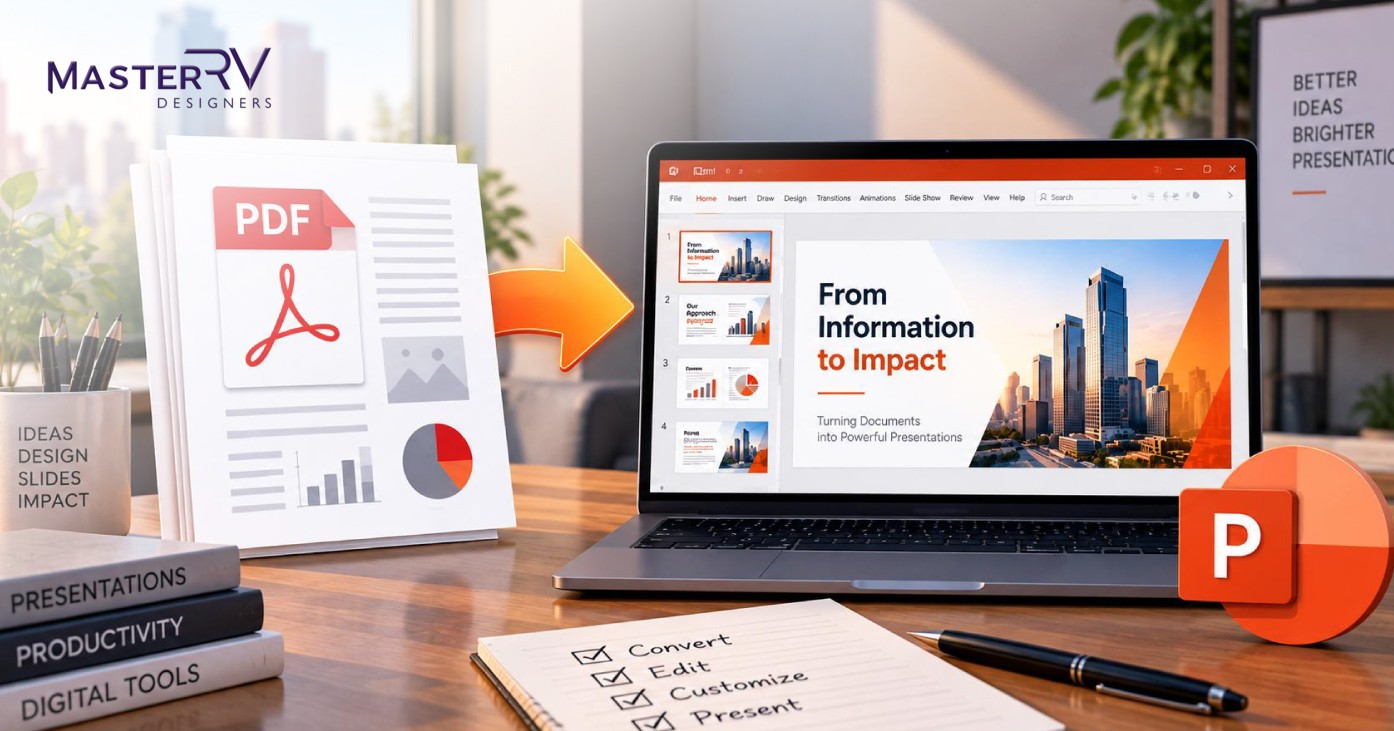
TL;DR
It’s hard to find a better solution than creating an editable slide deck from a PDF file. With proper knowledge about which method to use depending on your file type, and several post-conversion fixes, it’s possible to turn any PDF into a working presentation. If the conversion turns out messier than expected, that’s usually the point where it’s worth handing the redesign to a professional presentation design team instead of fighting the file yourself.
Why Should You Convert a PDF to PowerPoint?
There are several reasons why this skill might come in handy in your workflow sooner or later. If you deal with any business, marketing, or education projects where you create reports, brochures, and presentations, you may face the need to turn them into a living, editable PowerPoint presentation.
Such situations happen quite often, since sometimes you need to update a report, refresh a proposal, or just add some animations to it. It’s a waste of time to recreate such a presentation from scratch, which is why PDF-to-PPT conversion is so useful — particularly for documents like reports and newsletters that started life as static PDFs but now need to live on in a deck.
Step Zero: Determine Your PDF File Type
The first mistake many people make when converting a PDF file to PPT is thinking that any PDF file should be converted using the same method. However, not all PDF files are equal — the method you should choose depends on your file type. There are three different types of files that require a different approach to converting.
Before starting the conversion, determine the main feature of your PDF:
- Is it mainly text-based? You may use any simple converter for such files.
- Does it consist of precise layout, images, and vector graphics? Then a more advanced converter will help you succeed.
- Does your PDF include a lot of scanned or image-based content? You may need Optical Character Recognition (OCR) technology to extract the data from your file.
Answering these questions in advance will help you avoid mistakes and unnecessary work later. This is the only thing you need to do to save time while working with PDF.
Method #1: Convert Using Adobe Acrobat Pro (Best for Complex Files)
Adobe Acrobat Pro is one of the best programs for PDF-to-PPT conversion. The reason is that this program doesn’t capture a flat image of the page — it understands its structure.
Steps:
- Open your PDF file in Adobe Acrobat Pro.
- Go to the menu “Tools.”
- Find “Export PDF” and select this option.
- In the drop-down list, choose “Microsoft PowerPoint.”
- Click “Export.” Select the location where you want to save your file.
- Now open your .pptx file and examine all the slides.
This method works best with graphic-heavy or multi-column documents. It preserves the layout of slides well.
Method #2: Use Free Online Converters (Best for Speed)
Sometimes you need a quick solution but don’t have Adobe Acrobat Pro at hand. That’s why online PDF converters can help you convert your file quickly.
Popular services:
- Smallpdf (smallpdf.com/pdf-to-ppt)
- iLovePDF (ilovepdf.com/pdf_to_powerpoint)
- Adobe’s free online converter (adobe.com/acrobat/online/pdf-to-ppt.html)
Steps:
- Upload your file to any of the sites above.
- Let the converter process the file.
- Download the converted .pptx file.
- Check each slide carefully.
This option is very convenient, but it has a downside: online converters are more likely to shift text boxes and misalign images.
Method #3: Insert a PDF Document as an Object (Best for Reference Slides)
Sometimes you just need to display the content of a PDF file. If you don’t want to edit it or make changes, you can simply embed it in your presentation.
Steps:
- Open Microsoft PowerPoint.
- Find the “Insert” tab and select “Object” from the list.
- Use the “Create from file” function and choose your PDF file.
- Insert it into the slide.
This option isn’t good for actual conversion, since everything in the inserted PDF file remains static. You won’t be able to change anything.
Post-Conversion Fixes
Just putting the content of a PDF file into PPT slides is not enough. The conversion process often introduces issues like the wrong font style, poor alignment, and other problems that need a short fix.
- Visual hierarchy. When converting a file, all text usually becomes the same size. Rebuild the hierarchy by applying appropriate styles to your headings and subheadings.
- Apply your brand kit. It’s easiest to use the “Slide Master” to apply brand fonts and colors to every slide — the same brand consistency principles a design agency would apply across a full deck.
- Replace text blocks with visuals. Text that looks fine in a PDF can be too dense for PPT slides. Try splitting it into bullet points, or turning data-heavy sections into proper charts and infographics.
- Align slides with gridlines. Turn on “Smart Guides” and align all images and text boxes to a grid.
- Fix blurry images and graphics. If logos or icons get pixelated after conversion, replace them with a higher-resolution file or remake them.
Several Tips About PDF to PPT Conversion
- Check the slide dimensions. PDF files are usually made for printing and use dimensions like Letter or A4. The default PPT dimension is a 16:9 ratio, so you’ll need to adjust the slide size to make sure everything aligns properly.
- Don’t forget about hidden layers. Some PDFs contain layers that aren’t displayed, and these can convert into strange objects in PowerPoint. If something looks off, check the “Selection Pane” for extra objects.
- Handle tables separately. Complex tables often break during conversion. It’s usually better to rebuild the table manually in PowerPoint.
- Keep an untouched copy of your raw conversion file in case you need to start over.
- Check your slides in “Presenter View” to make sure everything looks right in practice.
Review Checklist
Before finishing your presentation, double-check all the slides in “Presentation Mode.” Pay attention to:
- Inconsistency of fonts across slides
- Overflowed text boxes
- Visible pixelation and distortion of images
- Unusual spacing
- Incorrect bullet formatting
If the deck still looks patched-together after all these fixes, that’s usually a sign the content needs restructuring, not just tidying — worth a look at what a proper presentation redesign involves before you sink more hours into manual cleanup.
The Takeaway
PDF-to-PPT conversion can be really helpful in your daily work. With the right choice of conversion tool, a few tips, and a solid post-conversion fix, any PDF file can become a high-quality presentation. Use this guide whenever you need to convert a PDF to PPT — and if the deck is high-stakes enough that it needs to actually look and perform its best, it may be worth bringing in a presentation design agency rather than converting it solo.
Need Help Converting Your PDF Into a Professional PowerPoint?
Waste no time repairing layout errors, fonts and graphics issues. Get MasterRV Designers to convert your PDF file into an organized and editable PowerPoint Presentation.
FAQs
Why does the format of my PDF break during conversion?
PDFs store information in a completely different way than PowerPoint. That’s why the formats don’t always match, and elements can shift during conversion. To avoid this issue, try using Adobe Acrobat Pro.
Can I keep all of my brand colors and fonts after conversion?
Yes. After conversion, go to the “Slide Master” and set your colors and fonts. Everything will become consistent with your brand — or, for a deck that needs to be genuinely brand-polished, a professional brand application will get there faster and cleaner than manual fixes.
Which is the fastest method of converting PDF to PowerPoint?
For simple text-based PDFs, you can use any free online converter. For complex files, Adobe Acrobat Pro is the best option.
How can I fix blurry images?
Blurry images usually appear due to low-resolution source files. Replace them with a higher-resolution picture, or remake them in PowerPoint.
Is it safe to use online converters for private documents?
No. Files uploaded to online converters get sent to third-party servers, so they aren’t safe to use for private or sensitive information. For confidential decks, it’s worth using desktop software like Adobe Acrobat Pro, or working with a trusted design partner under an NDA instead.